
Settings
SPFx Toolkit has a few settings you can change to make it work the way you like.
To open them, go to Settings (Ctrl+, on Windows and Linux, Cmd+, on macOS) and search for SPFx. You can also go to Extensions > SharePoint Framework Toolkit in the settings list.
The settings below are listed in the same order as you see them in VS Code. If you prefer to edit settings.json directly, all setting names start with spfx-toolkit..
App Registrations
Section titled “App Registrations”The list of Entra app registrations you used to sign in to Microsoft 365. SPFx Toolkit adds an entry each time you sign in, so next time you can pick it from the list instead of typing the IDs again. Learn more in Sign in.
This setting applies to all your VS Code profiles. You can’t change it directly in the Settings view. Select Edit in settings.json to change or remove entries. You can also remove entries from the sign-in list.
In settings.json it looks like this:
"spfx-toolkit.appRegistrations": [ { "name": "Default", "clientId": "00000000-0000-0000-0000-000000000000", "tenantId": "00000000-0000-0000-0000-000000000000" }]
Create Node Version File Default Value
Section titled “Create Node Version File Default Value”When you create a new project, the form asks whether to create a Node version file. If you check this setting, that option is set to Yes by default.
- Default: unchecked (
false)

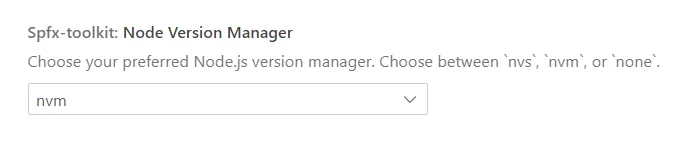
Node Version Manager
Section titled “Node Version Manager”The tool you use to install and switch between Node.js versions. SPFx Toolkit uses it when it installs Node.js for you, when it creates a Node version file for a new project, and to switch to your project’s Node.js version when it opens a terminal.
- Values:
nvm,nvs,none - Default:
none
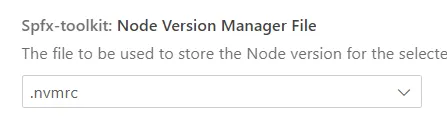
Node Version Manager File
Section titled “Node Version Manager File”The file SPFx Toolkit creates in a new project to store the Node.js version. The .node-version file works only with nvs.
- Values:
.nvmrc,.node-version - Default:
.nvmrc
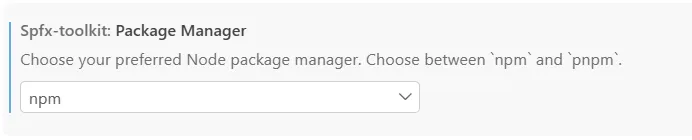
Package Manager
Section titled “Package Manager”The package manager SPFx Toolkit uses to install packages and in the commands it gives you, for example in the project upgrade steps.
- Values:
npm,pnpm - Default:
npm
Project Upgrade Output Mode
Section titled “Project Upgrade Output Mode”How SPFx Toolkit shows the steps to upgrade your project: as a Markdown report, as a Code Tour, or both.
- Values:
both,markdown,code tour - Default:
both

Project Validate Output Mode
Section titled “Project Validate Output Mode”How SPFx Toolkit shows the results when it validates your project: as a Markdown report, as a Code Tour, or both.
- Values:
both,markdown,code tour - Default:
both

Show Apps In App Catalogs
Section titled “Show Apps In App Catalogs”When checked, you can expand each app catalog in the App Catalog details view to see its apps. Uncheck it if you only want to see the list of app catalogs.
- Default: checked (
true)

Show Service Incident List
Section titled “Show Service Incident List”When checked, SPFx Toolkit shows current Microsoft 365 service health incidents in the Account view.
- Default: checked (
true)

Upgrade Shell Type
Section titled “Upgrade Shell Type”The shell used for the commands in the project upgrade steps. Pick the one you use in your terminal.
- Values:
bash,powershell,cmd - Default:
powershell
